april blog header
Showing posts sorted by relevance for query tutorial. Sort by date Show all posts

Wednesday, May 12, 2010

Pocketful of Sunshine!

Guild Membership includes the monthly Guild kit and the monthly issue of the Artisan Notebook. Here is a sneak peek at the May Guild benefits:

This very special kit takes its theme from an early, sunny spring day with a dash of sophistication. The contemporary color scheme of gray and yellow is combined with delightful garden-themed elements to create a one of a kind kit that is perfect for featuring your most special spring, outdoor, Mother's Day and even wedding-themed layouts. It includes 13 backgrounds, more than 55 elements (most come in both shadowed & un-shadowed versions) an upper and lower case alpha and a set of Ready-made (tm) layouts.

A  favorite digital scrapping technique is the use of extracted photos and this month we celebration EXCITING EXTRACTIONS.  From fantasy layouts to out of bounds to combination layouts, we have incredible layouts to inspire you.

This month meet the talented Sylvie of Sausan Designs and learn from the master of extractions, Miss Behaving, in her multi-page tutorial.  Enjoy a tutorial on duotones by co-editor Amy Head and an amazing tutorial using the pen tool by Julie Mead.  We have two tutorials from our editor, Stacey Jewell Stahl – one that includes a free gift and another that gives step-by-step instructions on creating a digital pop-up book complete with tips on perspective shadowing.

Our challenges this month include:  Just Write (journaling), Making Headlines (title), Pigment of your Imagination (color), Scraplift Tag (paper to digi) and Recipe for Design (photo/layout challenge).  Our creative teams rocked their extractions in all of these while focusing on the theme of the challenge.

Sarah Barber is back with another article on Artist Trading Cards and Mary Jamieson provides another Memory Jog for your album.  Our hybrid project is wonderful, and so are all of the exciting layouts in our Inspiration Station article.  This month is the final Stretch A Sketch article by the talented ChrissyW.  We wrap up our coverage of the Amazing Digi Scrap Race – Season 5.

Our photography section includes Project 365 photos, a fun photo chain, a fun twist in Nancy Morin’s Photo Clinic and portrait tips in our Portraits Plus article.

GOODIES:  Sarah Barber provides a coupon for a May purchase, Stacey Jewell Stahl provides a background paper for her tutorial and Dee Bee Designs gives our readers a mini kit.

image

Here is a closer look at the kit:

image

image

image

image

image

image

image

Purchase information can be found [B][URL="http://www.digitalscrapbookartisanguild.com/forums/showthread.php?t=2"]HERE.[/URL][/B]

Sunday, February 8, 2009

How To: Turn a Man To Stone

Besides asking for his credit card. ;)

I started playing around in Photoshop today and for some odd reason thought it would be fun to turn Sean into an old stone statue.  It really didnt even take too long.  Ok fine, I played around a lot and it took me almost two hours BUT if you decided to play, it probably wont take as long because I was stopping to take screen shots for a tutorial as well.  This tutorial is for people who are fairly familiar with their photo editing software.  I did mine in PS but I am sure it could easily be done in other programs as well.

1.  Decide on a photo.  I chose one of Sean because he looks so regal.  HAHAHA!

SeanBreakfast

2.  Extract the image from the background.  I use the Polygonal Lasso Tool because I feel I have better control.  Simply trace along the outside of your image, invert your selection,CTRL-Shift-I, and delete.

Two

3. Desaturate and optimize Contrast.  Next I simply desaturated the photo, CTRL-Shift-U, and then I added a wee bit of contrast, Image-Adjustments-Brightness/Contrast.

Three

4.  Edit the eyes.  Statues generally do not have eyes so we have to get rid of them.  I simple used my Polygonal Lasso tool again to trace the eyes.   On a new layer above my extracted image, I simply used the Paint Bucket to fill in the areas with a light grey color.  Now we cannot just leave this because it would not be correct.  We need to add some shading so the eyes look like they belong there.  Simply add an Inner Shadow to the layer.  You want something a little dark and a touch of noise, so its not too smooth.  Merge the two layers, CTRL-E.

Four

5.  Add Texture!  You can use as many, or as little, texture layers as you want.  I imagine using just one would be more then sufficient but I was really playing around with this.  I ended up with three different texture layers.  The first one a simple gray pebbled stone texture, the next a more yellow mossy texture and finally a crack from a picture of cement.  I just clipped the texture onto my extracted imagine, CTRL-ALT-G, and then played with the blend modes, generally ending up with Multiply and then adjusting the Opacity of the layer to suit my photo.  On my Crack layer I also added a slight down bevel to give it some more realism.

Five

6.  Add Depth.   With my final image completed I thought it needed a tad bit of shadowing there on the left side so I added a simple Inner Shadow to the layer, very lightly.  Then I added a background.  I chose a photo of the view Sean was looking at in this photo.  I added a great deal of blur to the background image with the Gaussian Blur tool, Filter-Blur-Gaussian Blur, to give it lots of depth and using the Lighting Effects tool, Filter-Render-Lighting Effects, I added a bit of sunlight coming from the upper left of the photo towards Sean's face.  I also added a wee bit of Dodging/Burning to highlight some areas that lost some of the detail.  Just play around and have fun!

Sean to Stone

I have no idea what I could possibly do with this but I had fun.  Hope you do as well.  If you decided to do this tutorial please link me up.  Holler if you have any questions.  :)

Here are the textures I used if you are interested.  I took these myself with the old camera and never used them.  These are for PERSONAL USE ONLY.   Just click on the image for the full size.  I wanted to use all my own photos but there are lots of Stock Exchange sites out there that offer free downloads of marble, stone, other textures, etc., that would work wonderfully.

PA264205

PA264210

PICT0227

Please do not use any part of this tutorial, or these images, on any other site/blog, without my consent.  Thanks so much!

Tuesday, January 8, 2008

Tutorial Touchdown!

That is what the January Issue of the Artisan Notebook available by the Guild through NDISB.COM is!! It is packed with fantastic tutorials on bringing patterns to your layout! This week we challenge you to go through the Notebook and find some inspiration! Following one of the many tutorials available, create a layout, post it in the Designer/CT Challenge Gallery at www.dsaguild.com!! Also, copy your image into the Artisan Notebook Gallery there!! That way we wont miss it and it will get lots of love!! I cannot wait to see what you come up with!

Let's show Rachel and Miss Stacey how much we love and appreciate the hard work they put into the Notebook for us!!

Here is my layout using the tutorial on creating patterns with photos, found on page 62!


This is my layout!! I used Angie Miner's kit Shine and Christine Haskell's amazing Sweeping Plumes overlay pack!!

The Notebook is always PACKED solid with wonderful inspiration and tutorials. If you dont have it now, what are you waiting for???? :)

I JUST added a new product to the store so I thought I would share it here! Check out these Fabulous Floral Layouts now at Natural Designs In Scrapbooking!


And my example layout using my kit Just Believe and another photo from my shoot with Jennifer on the weekend.

Saturday, April 12, 2008

It okay, you can say it!

By golly you are creative Amy. There now that we have THAT out of our systems. lol ;) You want to know why I think I am creative, dont you? Well, remember yesterday when I said I bought a $5 dollar lamp from Walmart to jazz up? I certainly did jazz it up. Not so long ago I wrote a tutorial on Digital Art after some people inquired about one for the Guild. I had originally created some artwork for a focal point for my bedroom. In creating the tutorial, I created another piece that would also tie into my room. However, I did not know what I was going to use it for. I have more then enough pictures in my room so I didnt want to just frame it. Today when I went to decorate my lamp it hit me, I should use the digital art piece because it was roughly the same size! I was so excited I jumped right to it. I printed out the design on some fabric. Cut it to fit the shade and then hot glued it on. Remember that hot glue can be your best friend AND your worst enemy so keep a bowl of cold water next to you. ;) After I glued the design on I trimmed the lamp on both the top and the bottom with some thin black satin ribbon. Voila! A unique and creative lamp that no one else on Earth has but me. :)

I also made that little bowl you see there. That was super cute and easy as well. I took some yarn, dipped it on Elmer's school glue. Took a bowl, covered it with plastic wrap, draped the yarn around it. Wait for the glue to dry, peel it off, spray it with clear coat and then you are done. I think they would be great for keeping little girl's hair bows and whatnot.
Out of my GIANT list from yesterday I have accomplished very little. Most likely because I am just sitting here at the computer blogging and creating a new kit for the store. Somewhat ambitious I suppose. I worked on the hat rack but have to wait for a drill to complete it. I have my curtains half done. I bought glue sticks!! Amazingly most of the stores I went to were out! Was there some sort of mad rush for glue sticks in my town or what?
I should get busy with some of my projects....OR may be I will read some blogs. ;)

Monday, February 9, 2009

How To: Hot Air Balloon

When I saw the Digi Dare this week I instantly thought of what I wanted to do for it.  A layout with a hot air balloon and my handsome men.  I did not have any hot air balloons though so I thought, how hard could it be to make one.  Its not hard and I will show you...  I use PSCS2 but this should be just as easily copied in any other program.  This tutorial is for people who are fairly knowledgeable with their program.

First open a new document, I used 12x12 because thats what I scrap but you can use any size you want your balloon to be.   Using your Custom Shape Tool, chose the teardrop shape, simple draw your tear and flip it so the large area is on top.  Then using your Rectangle Marquee tool cut off the bottom of the drop to make the base of the balloon.

HAB-1

HAB-2

Copy this layer, CTRL-J, and then change to a different color so you can tell the layers apart.  It is always a good idea to rename your layers for identification and dont forget to save as you go along.  Using your Perspective Tool, Edit-Transform-Perspective, simple narrow out the bottom of your new layer.  Depending on how many layers you want your balloon to have, keep repeating these steps.

HAB-3

Now you have a basic template for your balloon.  Next I clipped on some decorative paper.  Starting to look better and better.  Next we need to add show shadowing to each layer to add some depth and a bubbling effect.  Below you will see the Inner Shadow details I used for each layer of the balloon. 

HAB-4

I also used my Dodge/Burn tool to make some highlights on the inner parts of each layer.

HAB-5

I added a small Radial Gradient layer to the top layer using the details show below.  Black to White, 50-60% Opacity depending on the color of your papers, and then change your blend mode to what you think looks best, I chose Soft Light.

HAB-6 

Add some ropes to your balloon and a basket.  The basket you can design any way  you want really.  I wanted something simple so I used my Rounded Rectangle Tool and the same Inner Shadow that we used on the balloon.  Copy this layer. Then using my Circle Marquee tool I removed a section of the TOP Basket layer for a small opening for your people.  You will notice I added a brown base to my balloon as well.  Simple use your Rectangle Tool, then adjust it with your Perspective tool as you did with the balloon pieces, add the same Inner Shadow and add some slight Dodging for better highlighting.

HAB-7

Finally I thought the balloon could use some more roundness so I Merged the balloon layers and using my Perspective Tool again I stretched out the top of the balloon for my finished look.

HAB-8

Hot-Air-Balloon-lo

For this layout I used Gabby by Shabby Princess, the clouds are from Jofia DeVoe's Sugar Dreams and the fonts are Susie's Hand and Cast Iron.  I hope you enjoy this tutorial.  If you make a balloon yourself I would love to see it, so link me up.  Happy scrapping!

Thursday, March 12, 2009

Happy Birthday Dad!

Today my father is 57 years young.  :)  I know he had a good day from start to finish.  He was grinning from ear to ear the entire time he was here for his 'party.'  Connor and I baked him a cake and made him cards.  Plus we got him a signed copy of The Vinyl Cafe's latest book by Stuart McLean.  I only took one picture tonight but we had a lovely time.

Day 69

Day 69

I have been feeling like sewing lately.  Which is odd because I generally despise the sewing machine.  I am one of those people that measure three times, cut once and mess up ten times.  lol  Ok, I am not that bad but I have had my moments.  Picture me if you will, nine months pregnant with Connor, on the kitchen floor of my parents' house at 1am crying hysterically because I messed up a blanket I was making for my boy.  My father walked into the room, turned around and went upstairs.  I believe I was screaming something along the lines of being a complete failure and for him to leave me alone.  lol  I blame it on the hormones.  I have a lot of pregnancy stories.  ;)

ANYWAY!  I found this fabulous tutorial for Crayon Rolls and eagerly jumped into it today.  I made TWO!  My friend's little girl is having a birthday on Sunday so I made one for her and one for her baby brother.  He is still too young for crayons but there is always next year for him to use it.  :)

This is the first one I made so it's kind of messy.

CR0101

CR0102

She loves Disney Princess so I bought her some of the crayons and made the roll to match in colors.

CR0201

CR0202

I am planning on making some more tomorrow.  Connor has requested a Spiderman one to match his room.  I might go to my mother's to make some.  She has a serger so it will be a great excuse to play.  ;)

My 365 for yesterday...  We like movies.  Can ya tell?  This is a small section.  We buy them on sale from our local video store second hand.  Great deals.

Day 68

Day 68

Today is my third anniversary of digital scrapbooking.  :)  That makes me happy.  Its officially my longest obsession. 

Tuesday, June 3, 2008

I am a slacker. I know!

This morning when I opened my inbox I had the funniest comment from Melly! (See my last post comments) I know I have been slacking on my blogging lately. Life has been....aggravating. Did you ever have a moment where you thought that moving to a foreign country, changing your name to Annabelle and pretending you were a princess was a good idea? ME TOO! Anyway, lots has been going on! People home from away, normal family drama, friends popping up everywhere, its crazy how busy we have been. Plus I have something extra on the go that I am trying to prepare for! I will share that soon! I am REALLY hoping to get a good response so you will see me around a LOT. :) What has happened?
I am down to 178lbs! Go me. So that's what? Four pounds in two weeks. That's not too shabby. Especially since I have done very little of anything. Have to boost my motivation.
I have a new kit in the store! Its called Southern Comfort!

The ladies at the Guild have been busy busy busy creating beautiful layouts with it this week. Each and everyone of them is GORGEOUS! Here is a sampling!
CT Member ScrapMel

CT Member Amson

CT Member Ina

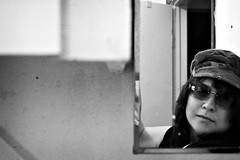
So much more going on! I wrote an article for the Artisan Notebook this month. A tutorial on taking reflective self portraits. Lots of people have been asking for a long time for me to do just that so now you have it! Go ahead, take some of your own! Upload them to the Guild gallery and post a link in this thread so we can show you some love! Here are some of the examples from the article.
Grungy Reflections
Reflections
Know what else I have been up too? SCRAPPING my buns off! The new Guild kit is out, Bohemian Bling and let me tell you, its AMAZING! I love it! My layouts! Most people would say that it was a girl's kit but its SO VERSATILE! Look I made a layout of my son, my new avatar and a landscape!


I am making up for not blogging for a week! I have lots more but we will wait until tomorrow. Have a great Tuesday!

Monday, May 4, 2009

Trash to Treasure

I have been working on a lot of little things this week, that I look forward to sharing soon.  Until then, a question from my darling son, “Mommy, why do you always bring home garbage?”  LOL  You have to love little minds.  Why?  I bring home garbage because I feel that I can take something that no one else wants and turn it into something lovely.

I found this little number in the deep, dark crevices of my parents’ basement.  I am not sure where it came from in the house but I can only assume my father was the one to replace it since it was still there.  I asked my father for it and of course, he said yes.   One dirty, old window with a broken clasp and full of putty.  Well, I scrapped and I scrubbed until it was clean.

DSC_0698

I found this little gem of a tutorial over at the blog, Just Something I Made with Cathe Holden, and thought it was perfect!  So here is my journey from Trash to Treasure!

I chose a font that I thought would be hard to mess up because I have not a steady hand.  I chose Jellyka, Estrya’s Handwriting which can be found at http://www.dafont.com.  I simply printed out my words in Photoshop, flipped them so they were mirror images and printed them out.

DSC_0699

You then tape them to the GOOD side and flip the window over.  Paint along the lines and Voila!  A wonderful new focal point for  your wall.  People said I was crazy, but those same people now admit I did good.  lol

DSC_0703

DSC_0705

DSC_0770

The birds are decals I picked up at the Dollar Store awhile back.  I will take a better photo in the future, one that incorporates some of the actual room.  ;)

Some 365 photos….

Day 115

DSC_0755

Another project I am working on….a spice rack.

Day 116

DSC_0756

“Mom, stop taking pictures of me, I cant zipper this!  Help me!”

Day 117

DSC_0760-2

Day 118

DSC_0762

Helping Sean wallpaper while I painted.  He was so helpful and only got paint on himself once, which is more then Sean can say.

Day 119

DSC_0769

Yeah, its all I had… sometimes the child of a camera obsessed Mom just doesnt want his picture taken.  Surprise!

Day 120 & Day 121

I missed them.

Thanks for stopping by!